Stop guessing! What different logo file type formats mean (and when to use them)
You finally have your new visual brand assets. Your designer sends over a folder, and inside there are six (maybe eight) different logo file types: AI, EPS, PNG, SVG … it looks like alphabet soup. Now what?
If you’ve ever found yourself wondering which file to use or sending your designer yet another “just a quick question” email, you’re not alone. Most people who don’t push pixels around Illustrator every day don’t know the difference between different logo file formats.
But here’s the thing: using the wrong version of your logo in a design matters. If you use a rasterized version (intended for small web display) in a billboard design, your logo will look blurry. The good news is, though, once you understand the basics, picking the right file will take you seconds.
Keep reading for a plain-English breakdown of the most common logo file types and details on exactly when to use each one.
Raster vs. vector: format basics
All logo files fall into one of two categories: raster and vector. Understanding the difference between them makes everything else in this post click.
Raster images are made up of pixels (tiny squares of color). They look great at their original size, but if you scale them up, they become blurry or pixelated. Have you ever taken a photo on your smartphone, zoomed in to see something in the background, and noticed that the detail fades and things start to look fuzzy? Graphics, like photos, when saved in raster image formats (such as JPG or PNG), are only super crisp at one size.
Vector images work differently. They’re built using mathematical paths instead of pixels, which means you can scale them up to the size of a building without losing an ounce of quality. This is why your logo, if in vector format, will look insanely sharp on a business card or a trade show backdrop. AI, EPS, and SVG are common vector formats. In some cases, PDFs can be vector too, but not always (more on that later).
So, why does knowing all this format stuff matter? If you remember nothing else from this post, remember this:
Use vector files for print and large-format projects (think banners, signage, vehicle wraps), and raster files are generally fine for everyday digital use (social post graphics, email signature files, etc.).
Common logo file formats explained
Now, let’s get into the specific files sitting in that folder from your designer.
PNG
PNG is probably the logo file you’ll reach for most often. It’s a raster format that supports transparent backgrounds, so your logo can sit cleanly on top of a colored banner or photo without an ugly white border. Use PNGs for your website, social media profiles, email signatures, and presentations. Just don’t try to blow one up for a large printed banner. It won’t end well.
JPG (or JPEG)
JPG is another raster format, but unlike PNG, it doesn’t support transparency. That means your logo will always have a background (usually white). JPGs also use compression, so the image quality can degrade over time if the file gets saved repeatedly. Use JPGs when transparency isn’t needed and file size matters, such as for a quick email attachment. For most other purposes, PNG is the better choice.

SVG
SVG stands for scalable vector graphics, and it’s become the go-to vector format for web use. Because they’re code-based, SVGs offer many benefits. They load fast and stay crisp on screens of all sizes. If your web developer asks for a vector version of your logo, this is usually what they want. (Fun fact: using the right image formats is one of many factors that can impact your website’s loading speed.) SVGs aren’t ideal for print projects or for sharing with vendors who may not have the software to open them.
EPS
EPS is the workhorse vector format for print. When you send your logo to a sign shop, promotional products company, or print vendor, they’ll typically request this file. It preserves all the vector data so your logo can be scaled to any size without losing quality. Most people won’t have software to open EPS files on their own computers, so it’s not great for everyday sharing.
AI
AI files are the native format for Adobe Illustrator. Think of this as your logo’s master file, the original source your designer worked from. You’ll rarely need to use this one yourself, but keep it backed up somewhere safe. If you ever need to make edits to your logo or a future designer needs to access the original artwork, this is the file they’ll ask for.
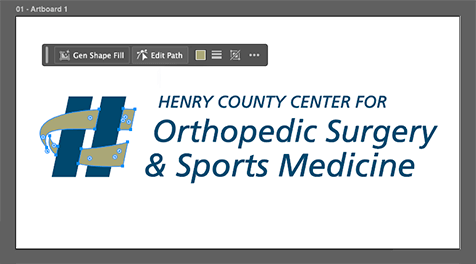
PDF is the wildcard. It can be either raster or vector, depending on how it was created and saved. A vector PDF works just like an EPS and is great for print. A raster PDF is essentially a fancy JPG. If a vendor asks for a PDF of your logo, it’s worth confirming with your designer that it’s the vector version. Don’t assume.
Cheat sheet—
- Website, social media, or email? → PNG or SVG
- Print vendor, signage, or promo products? → EPS or vector PDF
- Quick share or email attachment? → PNG or JPG
- Edits or archiving the original? → AI
Keep it all straight with a digital brand guide
Even with a cheat sheet, logo usage can get messy, especially when multiple team members or outside vendors are involved. That’s where a digital brand guide comes in handy.
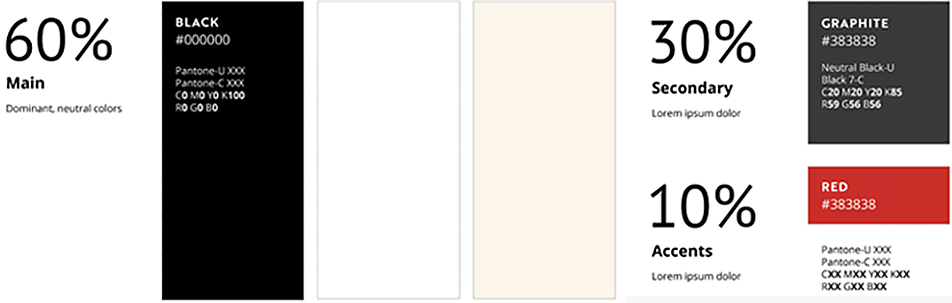
A good brand guide stores all your logo files in one place and documents the rules for using them, including minimum size requirements, clear space rules, approved color variations, and placement guidelines. Some brand books even include tips for specific scenarios, like which logo version works best on dark backgrounds versus light ones.
If you find yourself answering the same questions over and over (or cringing when you see your logo squished or stretched on a partner’s website), a digital brand guide can save you a lot of time and frustration.
Logo file types, demystified
Now you can dig through that folder of logo files with confidence. No more guessing, no more frantic emails to your designer. And if your brand assets are feeling outdated or incomplete, it might be time for a refresh.
TBH Creative offers branding services, including customizable digital brand guide development, so your whole team and all your partners always know exactly which files to use and how to use them. Let’s talk.

About the author Joy Olivia Miller
Joy is the creative director at TBH Creative and uses her expertise to help clients use their online communications to build, design, and manage their brands. She likes to blog about content marketing in all its forms, the latest trends in digital marketing, and share tools with readers.